GCP pd-ssd vs pd-balanced: cut disk costs 40%
Published · Updated · OhChimp Engineering
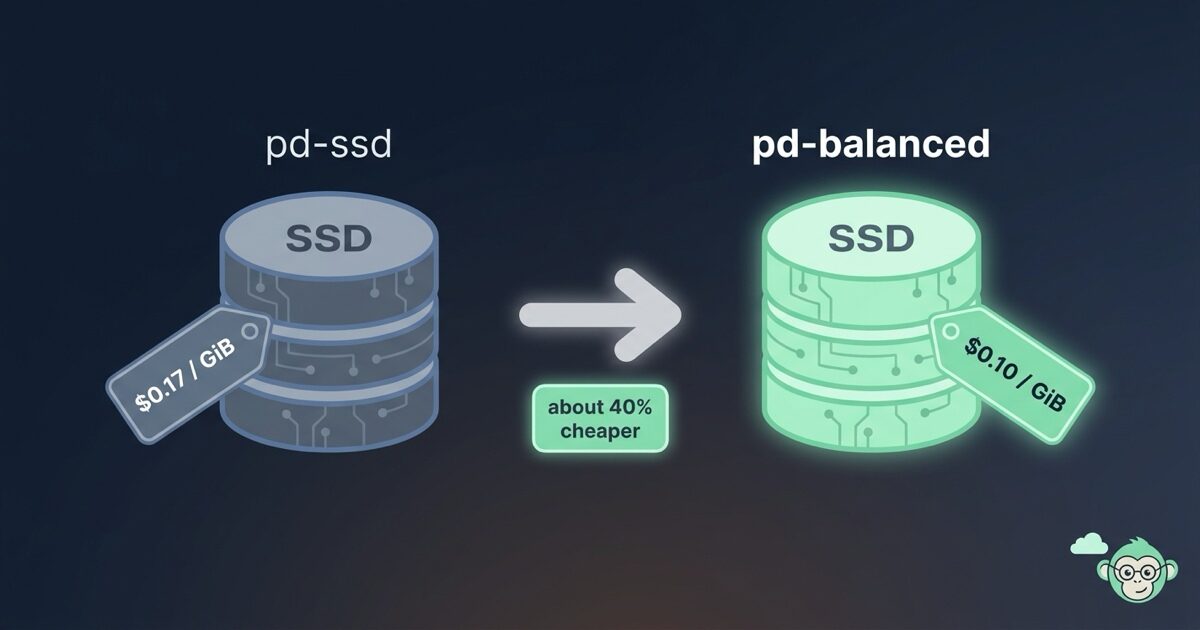
Your Google Cloud bill has an SSD line item paying for a performance ceiling you never reach. pd-ssd disks list at about $0.17 per GiB-month. pd-balanced disks give you the same SSD-class latency for about $0.10. That is roughly 40% off the same storage. Google Cloud will not let you flip the type on a live disk the way AWS does, so the migration takes a little more care.
Why pd-balanced is almost always cheaper than pd-ssd
pd-balanced is Google Cloud's modern general-purpose SSD disk. It is the default boot disk type for most machine families now. As of mid-2026, Google Cloud's Persistent Disk pricing lists "Balanced provisioned space" at $0.000136986 per GiB-hour and "SSD provisioned space" at $0.000232877 per GiB-hour in a US region like us-central1. Over a 730-hour month that works out to about $0.10 per GiB-month for pd-balanced and about $0.17 for pd-ssd. Move a disk across and you bank roughly 40% before you touch anything else.
Both types sit on SSD, so latency stays in the same class. You trade away the performance ceiling, and most disks never come near it.
Google Cloud publishes each type's performance ceiling as a formula: a baseline the instance gets whatever the disk size, plus a rate for every GiB you provision. For pd-ssd that is 6,000 IOPS and 240 MiB/s plus 30 IOPS and 0.48 MiB/s per GiB, and for pd-balanced it is 3,000 IOPS and 140 MiB/s plus 6 IOPS and 0.28 MiB/s per GiB. The per-GiB gap is what lets a large, busy disk drive far more IO on pd-ssd than on pd-balanced of the same size.
Here are the two types side by side, priced and sized against a 100 GiB volume.
| Measure (100 GiB volume) | pd-ssd | pd-balanced |
|---|---|---|
| Price per GiB-month | About $0.17 | About $0.10 |
| Cost per month | About $17 | About $10 |
| Baseline IOPS | 6,000 | 3,000 |
| Read and write IOPS per GiB | 30 | 6 |
| IOPS ceiling | 9,000 | 3,600 |
| Baseline throughput | 240 MiB/s | 140 MiB/s |
| Throughput per GiB | 0.48 MiB/s | 0.28 MiB/s |
| Throughput ceiling | 288 MiB/s | 168 MiB/s |
| Latency class | SSD | SSD |
| Type change on a live disk | No | No |
| Usual fit | Small disks with sustained heavy IO | Boot disks, logs, most app storage |
Those ceilings are what the disk offers, but your instance decides how much of it you actually get. Persistent Disk performance is also capped per instance by machine type and vCPU count, so a small VM can sit under the disk's ceiling however much capacity you provision. Check the per-instance limit for your machine type before you size a disk to buy IOPS.
The baseline belongs to the instance too. Two pd-balanced disks on one VM share a single 3,000 IOPS baseline and pool their per-GiB IOPS on top of it, so a data disk you move to pd-balanced joins the pool that a pd-balanced boot disk is already drawing from.
A 100 GiB volume on pd-balanced can reach 3,600 IOPS: the 3,000 baseline plus 6 for each of its 100 GiB. A boot disk for an app server rarely sustains a fraction of that. For boot disks, log volumes, and most application storage, the pd-balanced ceiling sits far above the real workload, and the 40% is close to free.
The trap: disk type is immutable
On AWS you migrate gp2 to gp3 with a single modify-volume call, and the disk converts underneath a running instance with no downtime. That gp2 to gp3 migration is a live change with the instance still serving traffic. On Google Cloud, a Persistent Disk's type is set when the disk is created and cannot be changed in place, so converting pd-ssd to pd-balanced means creating a new disk from a snapshot and swapping it in.
That swap is the whole job: you snapshot the pd-ssd disk, create a fresh pd-balanced disk from that snapshot, then detach the old disk and attach the new one. What that costs you in downtime depends on which disk you are moving. A data disk detaches and reattaches on a running instance, so the VM keeps serving and only the mount point goes away. A boot disk attaches only to a stopped instance, so that is the one that buys you a maintenance window.
For a while you pay for three things at once: the original pd-ssd disk, the new pd-balanced disk, and the snapshot in between. The saving only lands once you have confirmed the new disk is healthy and deleted the original. Until then the meter runs a little higher, so avoid leaving a half-finished migration parked for a week.
Find your pd-ssd candidates by hand
Start by listing every pd-ssd disk in the project. The gcloud CLI filters on disk type directly.
gcloud compute disks list \
  --filter="type:pd-ssd" \
  --format="table(name, zone, sizeGb, users.basename())"
The users column tells you whether the disk is attached to an instance. A row with a user is a disk doing work and worth migrating. An empty users column means the disk is unattached, and you are usually better off deleting it than converting it, because you are paying for storage that serves nothing.
Filter straight to the attached disks that are costing you:
gcloud compute disks list \
  --filter="type:pd-ssd AND users:*" \
  --format="table(name, zone, sizeGb, users.basename())"
That gives you the migration pile. One case deserves a second look before you move it: a small disk with heavy IO. The baseline carries a small pd-balanced disk further than its per-GiB rate suggests, so a 50 GiB volume still reaches 3,300 IOPS, while the same disk on pd-ssd reaches 7,500. If a small database disk has been leaning on that higher ceiling, pull its real numbers before you touch it. The disk metrics compute.googleapis.com/instance/disk/read_ops_count and write_ops_count in Cloud Monitoring count operations per sample period, not IOPS, so align them to a per-second rate (the rate aligner) and read the peak. Compare that peak against 3,000 plus 6 IOPS per GiB of all the pd-balanced capacity on that instance, and decide.
Persistent Disks are zonal or regional, and gcloud compute disks list sweeps every zone in the project at once. Run it in every project you own, because a forgotten pd-ssd disk in a project nobody opens still bills every hour.
for proj in $(gcloud projects list --format="value(projectId)"); do
  echo "== $proj =="
  gcloud compute disks list --project="$proj" \
    --filter="type:pd-ssd AND users:*" \
    --format="table(name, zone, sizeGb)"
done
Build the replacement while the VM keeps running
Once you have the list, every disk follows the same two steps to build its replacement. Snapshot the source, then create the pd-balanced disk from that snapshot. Neither step wants the instance stopped, because Google Cloud snapshots a disk that is still attached to a running VM.
# 1. Snapshot the source pd-ssd disk. The instance keeps serving.
gcloud compute disks snapshot my-disk \
  --zone=us-central1-a \
  --snapshot-names=my-disk-prebalanced-us-central1-a

# 2. Create a new pd-balanced disk from that snapshot.
gcloud compute disks create my-disk-balanced \
  --zone=us-central1-a \
  --type=pd-balanced \
  --source-snapshot=my-disk-prebalanced-us-central1-a
Snapshot names live in one project-wide namespace, not a per-zone one, so qualify the name with the disk and its zone when you migrate more than one. Two disks both called my-disk in different zones would otherwise collide on a bare my-disk-prebalanced and hand you the wrong rollback target.
A live snapshot captures whatever was in flight when it ran. That is fine for a log volume or a disk of static assets. When the disk backs a database or anything else keeping its own on-disk state, pause the writers first and resume them once the snapshot reaches UPLOADING, which is the point where Google Cloud has what it needs and no longer depends on the source.
Swap a data disk without stopping the VM
The workload never goes down for this swap, because the detach and reattach both happen while the instance runs. Unmount the filesystem inside the guest first. Pulling a disk out from under open writes risks incomplete IO and a volume you have to fsck later.
# In the guest: stop the writers, then unmount the old disk.
sudo umount /mnt/disks/my-disk
gcloud compute instances detach-disk my-instance \
--disk=my-disk --zone=us-central1-a
gcloud compute instances attach-disk my-instance \
--disk=my-disk-balanced --device-name=my-disk --zone=us-central1-aReuse the original --device-name on the attach. Compute Engine exposes the disk to the guest at /dev/disk/by-id/google-<device-name>, so keeping the name keeps that path stable. The disk you built from the snapshot also carries the same filesystem UUID as the original, which means an /etc/fstab line keyed on UUID= mounts the replacement with no edit at all.
# In the guest: mount the replacement and check the data is there.
sudo mount /mnt/disks/my-disk
A boot disk is the one that needs a window
Google Cloud attaches and detaches a boot disk only on a stopped instance, so this swap costs you the maintenance window the data disk did not. Add --boot on the attach so the instance knows which disk to boot from.
gcloud compute instances stop my-instance --zone=us-central1-a

gcloud compute instances detach-disk my-instance \
  --disk=my-disk --zone=us-central1-a

gcloud compute instances attach-disk my-instance \
  --disk=my-disk-balanced --boot --zone=us-central1-a

gcloud compute instances start my-instance --zone=us-central1-a
Roll back, or delete what you replaced
Confirm the workload is happy before you clean anything up. If something looks wrong, rollback is quick, because the original pd-ssd disk is still sitting there untouched. Detach the pd-balanced disk and reattach the original. A data disk rolls back on the running instance the same way it swapped.
sudo umount /mnt/disks/my-disk
gcloud compute instances detach-disk my-instance --disk=my-disk-balanced --zone=us-central1-a
gcloud compute instances attach-disk my-instance --disk=my-disk --device-name=my-disk --zone=us-central1-a
sudo mount /mnt/disks/my-disk
A boot disk rolls back through the stop and start, because that is the only way it attaches.
gcloud compute instances stop my-instance --zone=us-central1-a
gcloud compute instances detach-disk my-instance --disk=my-disk-balanced --zone=us-central1-a
gcloud compute instances attach-disk my-instance --disk=my-disk --boot --zone=us-central1-a
gcloud compute instances start my-instance --zone=us-central1-a
Only after the new disk has proven itself do you delete the original disk and the snapshot, which is what turns the swap into a lower bill.
gcloud compute disks delete my-disk --zone=us-central1-a --quiet
gcloud compute snapshots delete my-disk-prebalanced-us-central1-a --quiet
Regional disks need their own flags
Every command above assumes a zonal disk. Run them against a regional pd-ssd disk and you throw away the replication you have been paying extra for.
Regional Persistent Disk keeps a synchronous copy of the disk in a second zone. That is the whole reason for the higher per-GiB rate, and it does not survive a snapshot restore by itself. gcloud compute disks create accepts either --zone or --region, never both, so the create step above produces a zonal disk by definition. You end up with a working disk, a smaller bill, and one copy of your data. Nothing looks wrong until a zone fails, which is the event the disk was there to survive.
Regional disks are easy to miss in the discovery step too. A regional disk carries a region field where a zonal disk carries zone, so it still shows up in the earlier listing, just with an empty zone column. Ask for them on their own instead.
gcloud compute disks list \
  --filter="type:pd-ssd AND region:*" \
  --format="table(name, region.basename(), sizeGb, users.basename())"
Whatever comes back takes --region in place of --zone at every step. The create also wants --replica-zones, which takes exactly two zones, both inside the region you named.
gcloud compute disks snapshot my-disk \
  --region=us-central1 \
  --snapshot-names=my-disk-prebalanced-us-central1

gcloud compute disks create my-disk-balanced \
  --region=us-central1 \
  --replica-zones=us-central1-a,us-central1-b \
  --type=pd-balanced \
  --source-snapshot=my-disk-prebalanced-us-central1
Both attach-disk and detach-disk default to --disk-scope=zonal, so the swap commands from the last section go looking for a zonal disk under that name and fail on a regional one. Name the scope on each.
gcloud compute instances detach-disk my-instance \
  --disk=my-disk --disk-scope=regional --zone=us-central1-a

gcloud compute instances attach-disk my-instance \
  --disk=my-disk-balanced --disk-scope=regional \
  --device-name=my-disk --zone=us-central1-a
Confirm the replacement really is regional before you delete the original, because a zonal disk cannot be promoted to regional in place. Getting it wrong means snapshotting again and rebuilding with the flags above. Regional pd-balanced and pd-ssd both start at a 10 GiB minimum, so size is not what trips you here.
The cleanup from the last section needs the same care. gcloud compute disks delete goes looking for a zonal disk without --region, and the snapshot you are removing carries the region-qualified name you gave it above.
gcloud compute disks delete my-disk --region=us-central1 --quiet
gcloud compute snapshots delete my-disk-prebalanced-us-central1 --quiet
When Hyperdisk Balanced is the better target
Google Cloud has a second general-purpose SSD family called Hyperdisk Balanced, and for most workloads Google now points you at it first. Work out where it fits before you move everything to pd-balanced out of habit.
The two families price performance differently. On Persistent Disk, everything above the baseline is welded to size. pd-balanced adds 6 IOPS per GiB past its 3,000, so the only way to raise the ceiling is to pay for capacity you may not need. Hyperdisk Balanced splits the two apart. You pay for capacity per GiB, and you provision IOPS and throughput as separate dials. The first 3,000 IOPS and 140 MiB/s on every volume come free, and you pay only for performance above that baseline.
Price the "small disk with heavy IO" case from earlier on both families before you pick a destination. A 50 GiB pd-balanced disk already reaches 3,300 IOPS, more than the 3,000 Hyperdisk Balanced includes free at the same size, so only a disk that peaks above that needs a different home. Say it peaks at 7,500 IOPS, which is exactly what 50 GiB of pd-ssd delivers. In us-central1 that pd-ssd disk costs about $8.50 a month. Hyperdisk Balanced holds the same 7,500 IOPS at 50 GiB for about $26.50, with throughput left at the free 140 MiB/s. That is about $0.08 per GiB-month for capacity plus about $0.005 per IOPS-month for the 4,500 IOPS above its free 3,000. Padding a pd-balanced disk to 750 GiB to reach 7,500 IOPS costs about $75. At a 3,500 IOPS peak the order flips and Hyperdisk Balanced is the cheapest at about $6.50, so price your own disk's peak on all three before you move it.
Machine support decides whether Hyperdisk is on the table at all. Hyperdisk is built for newer machine series like C3, C4, N4, and the M families, per Google's Hyperdisk machine support table. The older series where most legacy pd-ssd disks actually live are a different story. C2 has no Hyperdisk Balanced support at all, so there gcloud compute instances attach-disk my-instance --disk=my-disk-balanced fails against a hyperdisk-balanced disk and no extra flag gets you past it. N1, N2, N2D, and E2 can run Hyperdisk Balanced only after your Google Cloud account team enables it, and Google still recommends Persistent Disk for disks that live and die with the instance, like boot disks. Without that enablement, getting to Hyperdisk means migrating the instance to a supported machine type first, which is a bigger change than a disk swap and a separate decision to weigh.
When the instance already runs on a Hyperdisk-capable series, migrate exactly as above and create the replacement with --type=hyperdisk-balanced in place of --type=pd-balanced. The snapshot and swap are the same steps. When it does not, and you have no account-team enablement, Persistent Disk is your lane and the pd-balanced migration is the win you can take today without touching the machine type.
For ordinary boot disks, log volumes, and app storage that live well inside the free performance baseline, the pd-balanced migration above is the simplest path to the saving, and the extra dials on Hyperdisk buy you nothing. Reach for Hyperdisk Balanced when a disk needs more IOPS than pd-balanced reaches at a size you want to pay for, and the arithmetic above comes out in its favor.
A quick decision tree
graph TD
  A[pd-ssd disk] --> B{Attached to an instance?}
  B -- No --> C[Delete it: you pay for storage serving nothing]
  B -- Yes --> D{Small disk with heavy IO?}
  D -- No --> E[Snapshot, recreate as pd-balanced, swap it in]
  D -- Yes --> F[Check peak IOPS against 3,000 plus 6 per GiB]
  F --> G{Real IOPS under the pd-balanced ceiling?}
  G -- Yes --> E
  G -- No --> H[Price pd-ssd against Hyperdisk Balanced at that peak, if the machine type takes Hyperdisk]
  E --> I{Boot disk?}
  I -- No --> J[Unmount, detach and attach on the running VM]
  I -- Yes --> K[Stop the VM, swap the boot disk, start it again]
Related reading
Buying a ceiling the workload never reaches is the same bill in a few different shapes.
- Bedrock provisioned throughput bills when idle is the inference version. A model unit sells you capacity rather than usage, so it charges the same hourly rate whether you push tokens through it or leave it alone.
- Cut Kubernetes costs by right-sizing pod requests shows the same gap in compute. A pod's requests reserve CPU and memory on a node whether the container touches them or not, and that gap is the one pd-ssd charges you for at 30 IOPS per GiB.
- Azure VM stopped vs deallocated: how to deallocate is where a disk bill outlives its machine. Deallocating a VM stops the compute meter and leaves every attached disk billing, so the type you picked keeps charging after the instance goes quiet.
- Find unused Postgres indexes and drop them safely is the layer above the disk. An index no query plan has touched still occupies the volume you just migrated, and it taxes every write that keeps it current.
- Is cloud spend COGS or OpEx? Make it a margin KPI is what makes the migration worth queueing at all. Storage sits in cost of revenue, so 40% off an SSD line item reads as gross margin on the finance side.
Common questions
How much cheaper is pd-balanced than pd-ssd?
pd-balanced lists at about $0.10 per GiB-month against pd-ssd's roughly $0.17 for the same SSD-class storage in a US region like us-central1, so moving a disk across saves close to 40% on that line item. The saving only lands once you delete the original pd-ssd disk and the migration snapshot, so finish the cleanup before you count it.
Can I change a disk from pd-ssd to pd-balanced in place?
No. A Persistent Disk's type is fixed when the disk is created, unlike AWS where a single modify-volume call converts gp2 to gp3 on a live instance. Converting on Google Cloud means snapshotting the pd-ssd disk, creating a fresh pd-balanced disk from that snapshot, and swapping it in. Only a boot disk makes you stop the VM to do it.
Do I have to stop the VM to migrate a pd-ssd disk?
Only for a boot disk. Google Cloud attaches and detaches a boot disk on a stopped instance alone, so that swap costs a maintenance window. A data disk detaches and reattaches while the instance runs, and the snapshot and the disk create both happen against a running VM, so the outage is the unmount and remount rather than the whole machine. Unmount inside the guest before you detach, because Google recommends it to avoid incomplete IO.
Is pd-balanced slower than pd-ssd?
Both types sit on SSD, so read and write latency stays in the same class. What you trade away is the performance ceiling: pd-ssd starts from a 6,000 IOPS baseline and adds 30 per GiB, while pd-balanced starts from 3,000 and adds 6, so a 100 GiB disk tops out around 3,600 IOPS on pd-balanced against 9,000 on pd-ssd. Boot disks, log volumes, and most application storage never come near that ceiling, which is why the 40% is close to free for them.
Should I migrate to pd-balanced or Hyperdisk Balanced?
Only a disk that needs more than pd-balanced's 3,000 IOPS baseline plus 6 per GiB has a reason to look past it. For that disk, price Hyperdisk Balanced against pd-ssd at its peak: Hyperdisk provisions IOPS separately from capacity and includes 3,000 free on every volume, but it bills about $0.005 per IOPS-month above that, so a 50 GiB disk peaking at 7,500 IOPS is cheaper to keep on pd-ssd. The catch is machine support: Hyperdisk is built for newer series like C3, C4, N4, and the M families. A C2 instance has to move machine type first, and N1, N2, N2D, or E2 needs your account team to enable Hyperdisk Balanced before it can attach one. For ordinary disks inside the free performance baseline, plain pd-balanced is the simpler win.
Do regional persistent disks migrate the same way?
The steps are the same and the flags are not. A regional disk takes --region everywhere a zonal disk takes --zone, the create needs --replica-zones with exactly two zones inside that region, and both attach-disk and detach-disk need --disk-scope=regional because they default to zonal. Miss those and you build a zonal pd-balanced disk that works fine and no longer keeps a copy in a second zone.
Does a boot disk migrate differently from a data disk?
The two build steps are identical: snapshot the source, then create the pd-balanced disk from that snapshot. The swap is where they part. A data disk unmounts, detaches and reattaches by device name with --device-name on a running instance. A boot disk needs the VM stopped and --boot on the attach so the instance knows which disk to boot from.
How OhChimp approaches this
Because the type is immutable, each disk costs you a snapshot, a swap, and, for boot disks, a window you only want to spend once. That means choosing the right target and the right IOPS before you touch the disk, disk by disk, across every project and zone.
OhChimp scans your Google Cloud projects, finds the attached pd-ssd disks, and writes a reviewable plan per disk: snapshot, create the pd-balanced disk, swap it in, with the exact rollback if anything looks off. It answers the IOPS question for each one, so you read a recommendation instead of repeating the analysis. Nothing snapshots or detaches until you press apply. The original pd-ssd disk keeps billing until you delete it, and the saving on each plan stays an estimate, because OhChimp cannot yet measure what one disk conversion saves.
The Google Cloud integration page walks through setting up the connection.